If you’re based outside the U.S., shipping on Big Cartel is set up manually using Shipping Profiles. This gives you full control over your rates, regions, and how products ship together — but it also means you’ll want to make a few decisions before jumping in.
This guide walks you through what to think about before you start creating shipping rates, so when you do set things up, everything works smoothly at checkout.
When you’re ready to actually configure your shipping, you'll head to our step-by-step guide.
Shipping from the U.S.? Head here for more info on your shipping options.
How shipping works on Big Cartel for international sellers
Big Cartel doesn’t calculate shipping automatically for international sellers. Instead, you set your own shipping rates based on a few key factors:
- What you sell
- Where you ship from
- Where you ship to
- How items ship together
To support this, international sellers use Shipping Profiles. A shipping profile represents a group of products that ship in a similar way.
Common examples include:
- Apparel
- Prints or posters
- Pins and small accessories
- Hats
- Oversized or heavier items
Rather than thinking in terms of individual products, shipping profiles let you think in terms of shipping behavior. This is what gives you flexibility.
Start by grouping your products
Before creating any shipping rates, it helps to group your products by how they ship.
This step doesn’t require any setup yet—just a bit of planning.
Ask yourself:
- Do these items ship in similar packaging?
- Are they close in weight or size?
- Do they usually ship together in the same order?
For example:
- short sleeve and long sleeve T-shirts might be one group
- Pins and stickers might be another
- Large art prints might need their own group
Each of these groups will typically get its own shipping profile. Grouping products this way makes it easier to create accurate rates and helps shipping behave more predictably at checkout.
Why shipping rate names matter (this affects checkout)
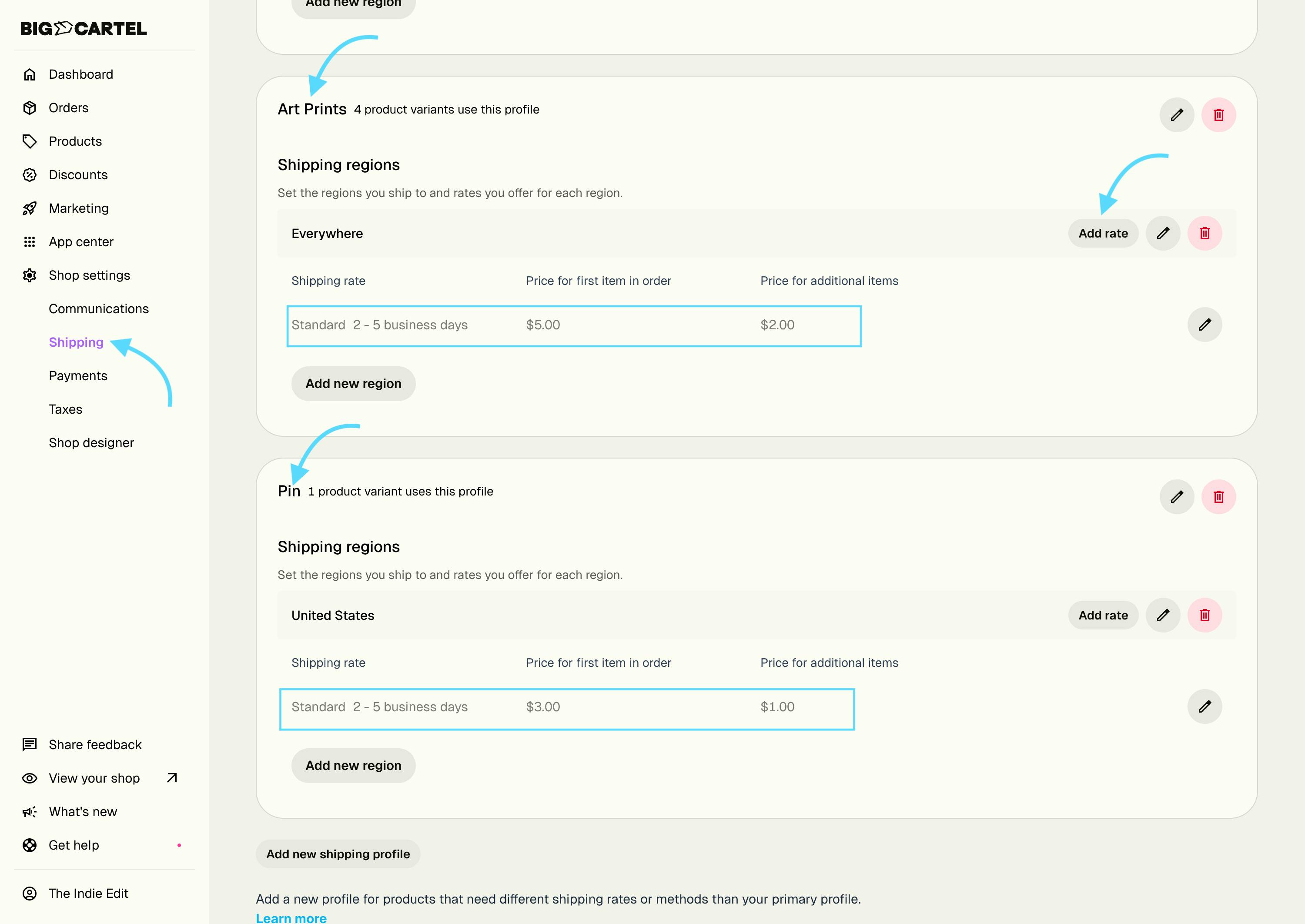
This is the most important concept to understand before setting up shipping: Shipping rates only combine at checkout when their rate names and delivery info match exactly across shipping profiles. This is what allows multiple products to ship together under a single option instead of appearing as separate charges.
Determining shipping rates
Shipping rates aren’t calculated automatically in your Big Cartel admin, so you’ll need to set them based on factors like package size, weight, destination, and carrier.
- Canada-based sellers on a paid plan who print labels directly from Big Cartel should pull their rates from Shippo.
- All other sellers can get shipping rates directly from the carrier they plan to use, such as USPS, FedEx, or Parcel2Go.
- You can also use any of Big Cartel’s third-party shipping integrations (available on paid plans) to find carriers and accurate rates.
Dropshipping and print on demand
If you’re planning to dropship or print ondemand Big Cartel offers direct integrations with select dropshipping and print-on-demand services that can sync with your shop and fulfill orders as they come in.
You can set your own product prices and shipping rates in Big Cartel, but be sure they cover production costs, shipping fees, and any provider fees. Each provider has its own pricing and shipping structure—review their help docs to make sure your rates line up.
Print-on-Demand integrations
These services automatically handle production and fulfillment when an order is placed:
Dropshipping integration
If you plan to work with a dropshipping or print-on-demand company that doesn’t integrate directly with Big Cartel, you can still use them. You’ll just need to manually send order details to the provider as orders come in for fulfillment.
Answers to Common questions before setting up shipping
Can I use different shipping rates for different products?
Yes. You can create separate shipping profiles for individual products or groups of products. Just keep this in mind: For rates to combine at checkout, each profile must include the same full set of Rate Names and Delivery Info. If the sets don’t match, checkout will treat them as separate shipments.
How can I offer free shipping?
To offer free shipping, enter $0 as the rate price when creating or editing a shipping rate. Buyers will see this as a free option at checkout. If you want an item to ship free only when it’s combined with other products, set $0 for “Additional items.” This works well for lightweight items that always ship together. To offer free shipping based on order total, use Automatic Discounts.
How do I add a local pickup or delivery option?
When creating a shipping rate, select Local Pickup or Delivery from the dropdown. Add clear delivery info (for example, “Pick up at 123 Main St” or “Delivery within 25 miles of Chicago”) so buyers know what to expect. Set the price to $0 for free pickup, or enter a delivery fee.
Now that you’ve got an overview of shipping, you can start setting things up using our Manual Shipping guide. Use this link for more detailed instructions.
Have questions or need a hand?
If you’re feeling unsure about your shipping setup—or something doesn’t look quite right—you’re not on your own. Shipping is one of those areas most sellers tweak over time, and it’s completely okay to ask for help along the way.
Our support team is here to help you choose the right setup, double-check your rates, or answer questions as they come up. Reach out anytime and we’ll help you get things sorted so you can focus on making and selling your work.