Premium Feature | Available to Platinum & Diamond Plan Sellers
Before you start
Before connecting POWR to your shop, make sure:
- You have a POWR account or are ready to create one
- Your Big Cartel shop is active
A paid Big Cartel plan is required to connect and use the POWR integration.
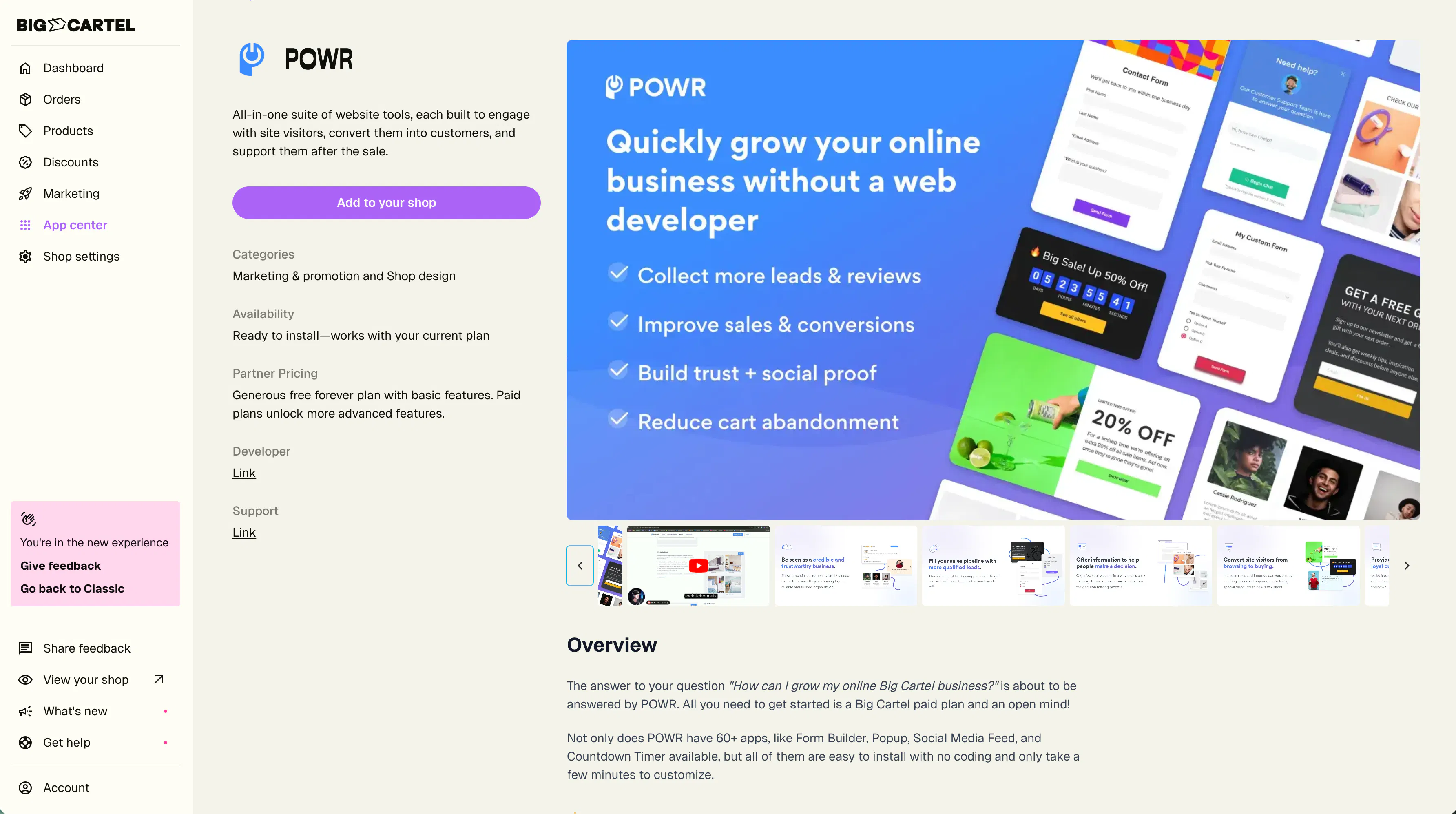
How to connect POWR to Big Cartel
Step 1: Start the integration
Go to the POWR integration page and tap Add to your shop.
Step 2: Connect your shop
When prompted, tap Connect to grant POWR access to your Big Cartel shop.
During setup, a free POWR account will automatically be created for you if you don’t already have one.
Step 3: Choose a widget or template
Inside POWR, browse the available widgets and templates.
Select the app or widget you’d like to install.
Step 4: Customize your widget
Use the POWR editor to customize:
- Design
- Layout
- Content
- Colors
- Display behavior
- Integrations
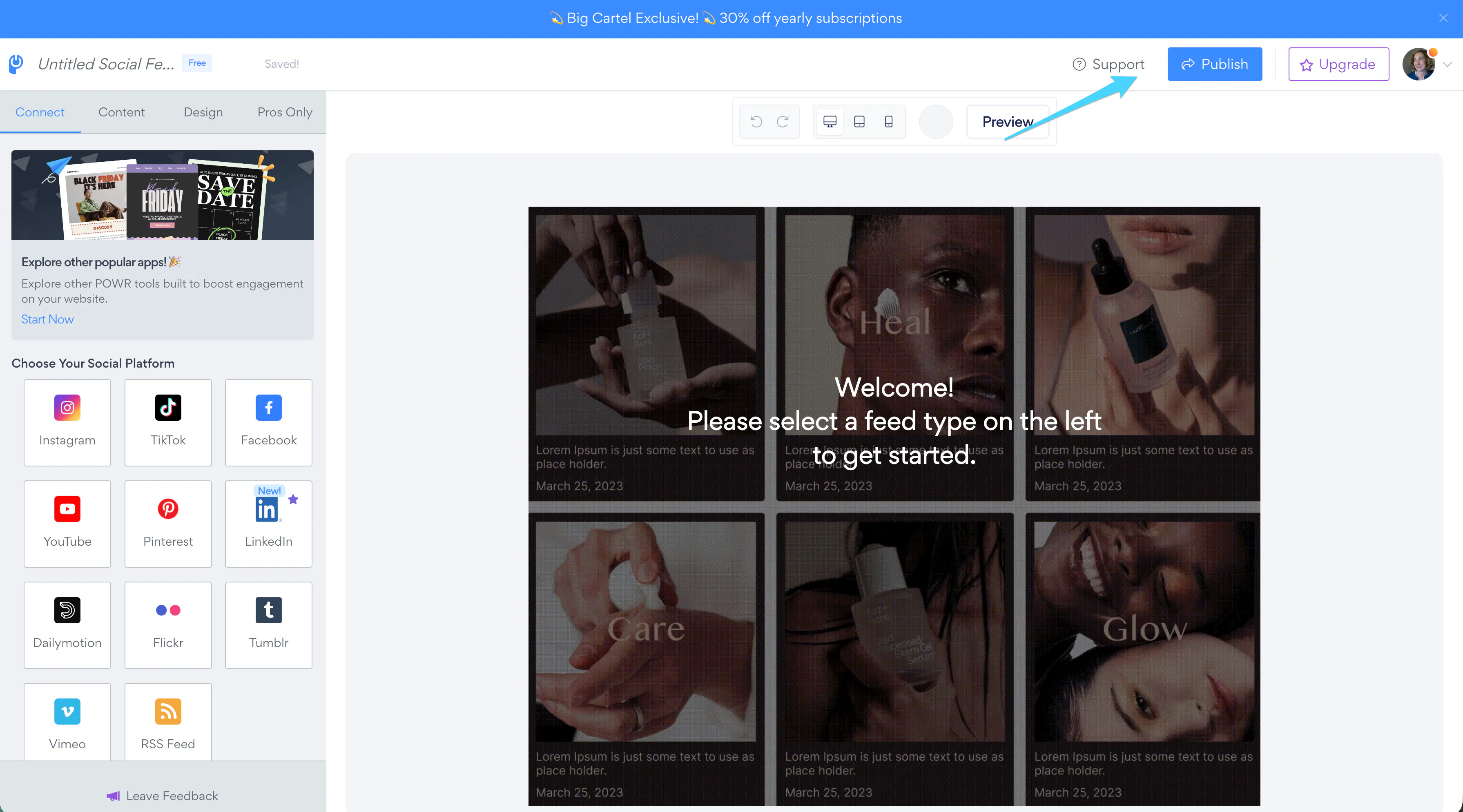
Step 5: Publish your widget
When you're ready, click Publish.
You’ll then choose where the widget should appear in your shop.
POWR automatically installs the widget without needing to manually copy code into your site.
Add popups and announcement bars
POWR popup and announcement widgets can help you:
- Promote sales
- Highlight promotions
- Share important updates
- Collect newsletter signups
You can customize timing, placement, and display behavior directly inside POWR.
Create forms and collect leads
Use POWR forms to create:
- Contact forms
- Wholesale inquiry forms
- Event registration forms
- Newsletter signup forms
- Custom order request forms
You can also enable autoresponder emails and connect forms to other marketing tools.
Display social media and galleries
Embed social media feeds and image galleries directly into your shop to create a more engaging shopping experience.
Connect integrations and automations
POWR can connect with tools like:
- Mailchimp
- Google Sheets
- Notion
- Zapier
These integrations can help automate workflows and organize customer information.
Manage widgets and placement
You can edit, move, or remove widgets anytime from your POWR dashboard.
Widgets can be displayed on:
- Specific pages
- Product pages
- Homepage sections
- Multiple pages across your shop
Troubleshooting
Widget isn’t appearing in my shop
Check that:
- The widget was published successfully
- The correct page placement was selected
- Your Big Cartel paid plan is active
Changes aren’t updating
After editing a widget, make sure you click Publish again so updates sync to your shop.
Form submissions aren’t being received
Verify:
- Notification email settings
- Connected integrations
- Spam or junk folders
Integration disconnected
Reconnect your shop through the POWR dashboard if permissions were removed or expired.
Common mistakes
Forgetting to publish changes
Widget edits won’t appear in your shop until changes are republished.
Installing too many popups
Too many popups or timers can negatively impact the customer experience.
Choosing the wrong widget placement
Make sure widgets are displayed where customers can naturally engage with them.
Not testing forms after setup
Always test forms and integrations after publishing to confirm everything is working correctly.
Expecting POWR to manage inventory or orders
POWR focuses on widgets, forms, and marketing tools — not inventory management or fulfillment.
Need help?
If you run into issues with setup, widget placement, forms, or integrations, reach out through our support center.
For POWR-specific questions about apps, billing, advanced customization, or integrations, you can also contact POWR Support directly from your POWR account.