Premium Feature | Available to Platinum & Diamond Plan Sellers
Before you start
Before connecting Mailchimp to your shop, make sure:
- You have a Mailchimp account
- Your Big Cartel shop is active
- You know which Mailchimp audience you'd like to sync with
A paid Big Cartel plan is required to connect and use the Mailchimp integration.
How to connect Mailchimp to Big Cartel
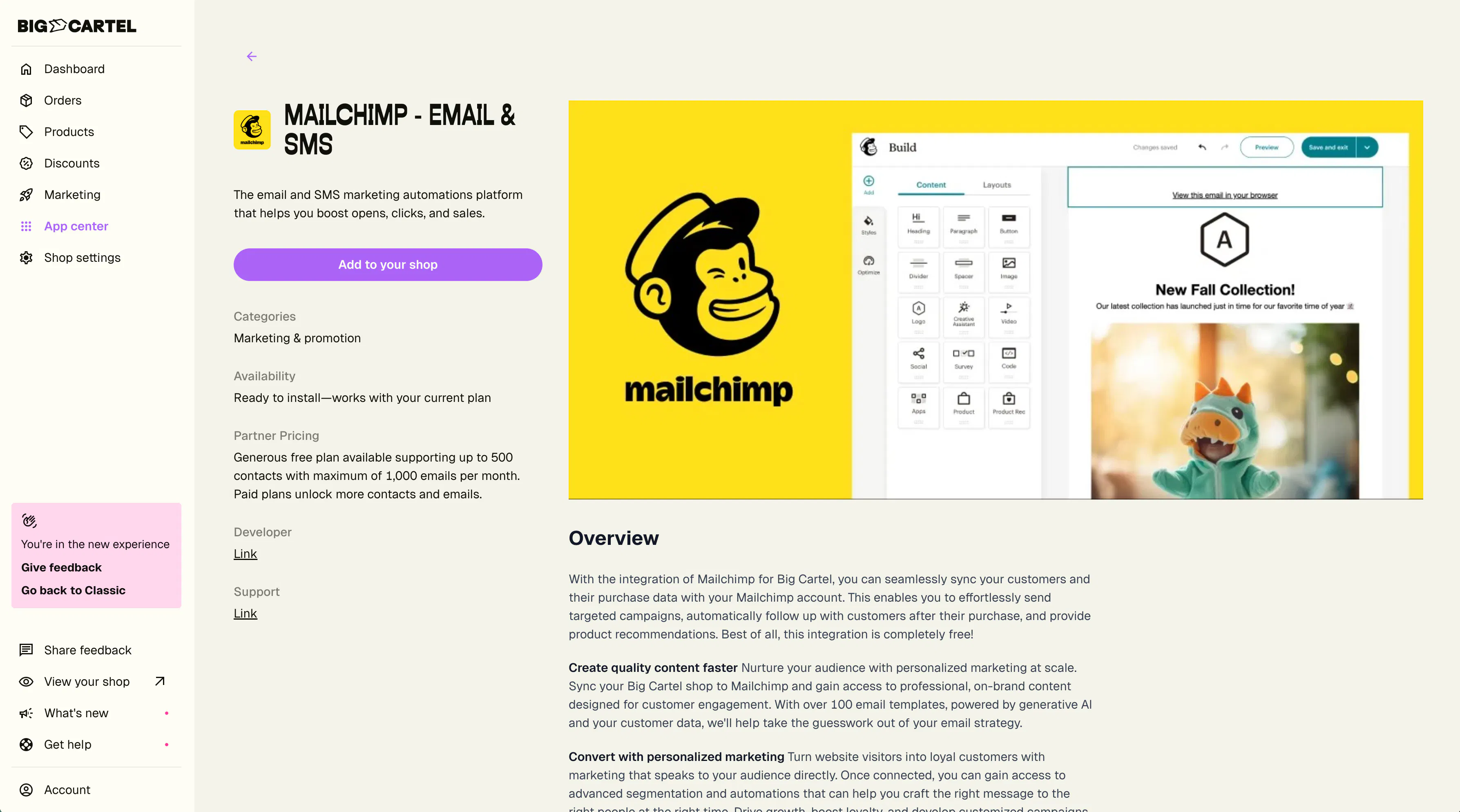
Step 1: Start the integration
Go to the Mailchimp integration page and tap Add to your shop.
Step 2: Authorize your shop
When prompted, grant Mailchimp access to your Big Cartel shop.
Step 3: Complete setup in Mailchimp
After authorization, you'll be redirected back to Mailchimp to:
- Select your audience
- Configure syncing settings
- Start importing customer and purchase data
After connecting your audience, Mailchimp will guide you through mapping your Big Cartel customer data to your Mailchimp merge tags to help ensure your information syncs correctly.
Add a popup form to your shop
Mailchimp popup forms can help grow your mailing list by encouraging visitors to subscribe before leaving your shop.
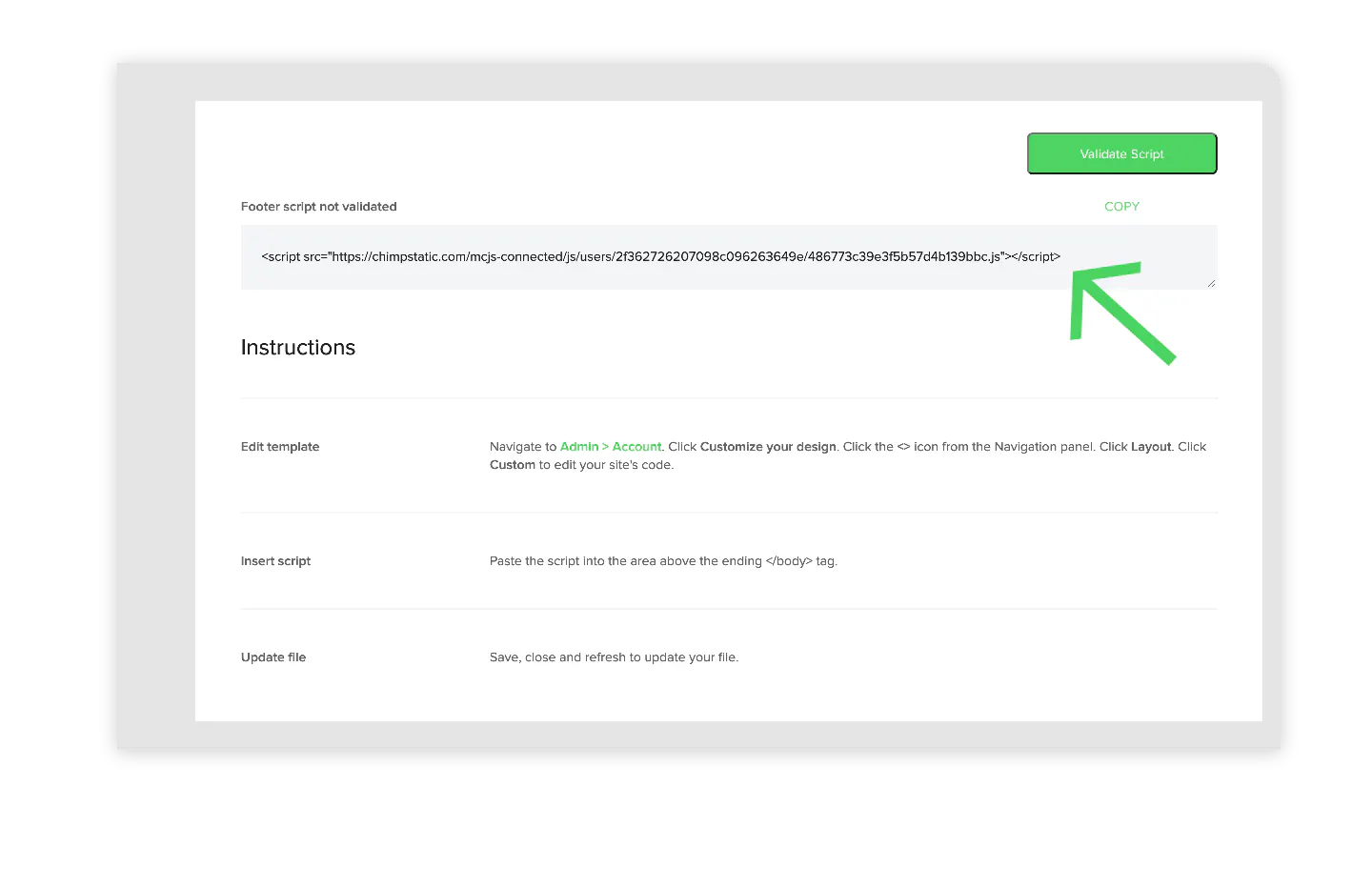
To install popup forms:
- Copy the Mailchimp installation script provided during setup
- In Big Cartel, go to Account > Shop Designer
- Open the Advanced or Integration Code section
- Paste the script
- Save your changes
Mailchimp integration features, including popup forms and custom integration code, require a paid Big Cartel plan.
Heads up! If you've skipped this page at the initial setup on Mailchimp's side, click this link to get back to the Mailchimp setup so you can do this.
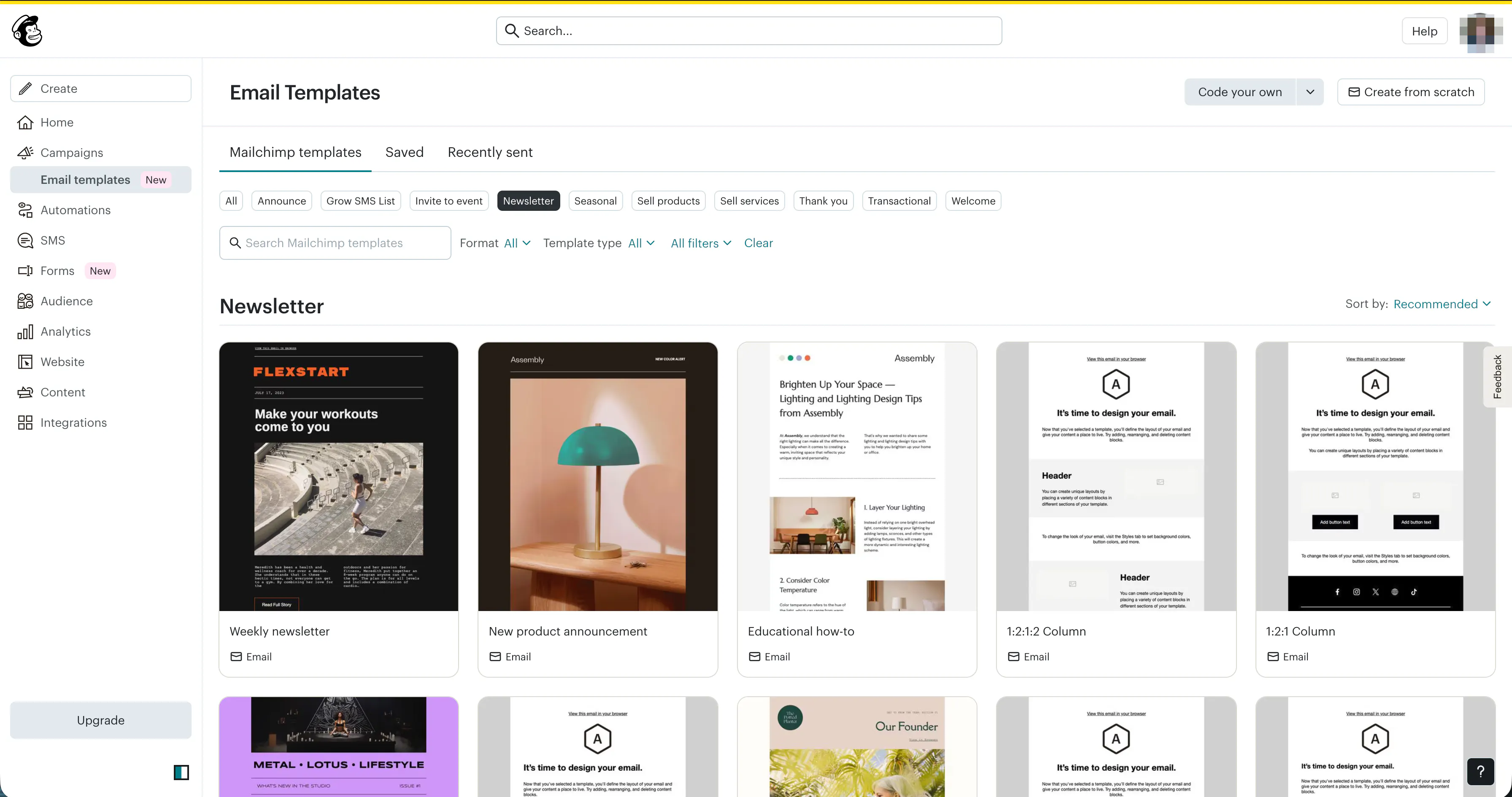
Create and send newsletters
Mailchimp makes it easy to create professional email campaigns for your customers.
To create a newsletter:
- Log in to Mailchimp
- Go to Campaigns
- Tap Create Campaign
- Choose Email
- Select your audience
- Choose a template or start from scratch
- Add your content, including: Product photos Shop links Announcements Discount codes
- Preview and test your campaign
- Schedule or send the email
Mailchimp includes more than 100 customizable templates and AI-powered tools to help you create polished, on-brand emails quickly.
Create automated customer journeys
Mailchimp automations can help you:
- Welcome new subscribers
- Follow up after purchases
- Recover inactive customers
- Recommend products automatically
- Reward repeat customers
You can build automations based on customer activity, purchase behavior, and engagement.
Segment your audience
Audience segmentation helps you send more personalized campaigns.
You can create groups based on:
- Purchase frequency
- Products purchased
- Total spending
- Recent activity
- Email engagement
Track campaign performance
Use Mailchimp’s reporting tools to monitor:
- Open rates
- Click rates
- Subscriber growth
- Revenue from campaigns
- Customer engagement
These insights can help you improve future campaigns and better understand your audience.
Troubleshooting
Customers aren’t syncing
Check that:
- The integration is still connected
- The correct audience is selected
- Merge tags were mapped correctly
- Customers opted into marketing emails during checkout
Popup form isn’t appearing
Make sure:
- You're on a paid Big Cartel plan
- The Mailchimp script was pasted into the Integration Code section correctly
- Changes were saved
Orders or customer data appear delayed
Sync activity may take a few minutes to appear in Mailchimp.
You can review event logs in Mailchimp to confirm whether syncing is working properly.
Duplicate subscribers appear
This can happen if customers were manually added to Mailchimp before connecting the integration.
Mailchimp’s audience tools can help merge or clean duplicate contacts.
Common mistakes
Forgetting to map merge tags
Incomplete merge tag mapping can prevent customer data from syncing correctly.
Skipping popup form installation
Popup forms require the optional Mailchimp installation script.
Assuming all customers are automatically subscribed
Customers must explicitly opt into marketing emails during checkout before being added to your audience.
Expecting instant syncing
Some customer and order activity may take a few minutes to appear in Mailchimp.
Installing the Mailchimp script in the wrong area
The Mailchimp script should be pasted into the Integration Code section in Shop Designer — not into page content or product descriptions.
Need help?
If you run into issues with setup, syncing, popup forms, or connecting your shop, reach out through our support center.
For Mailchimp-specific questions about campaigns, billing, automations, or advanced marketing tools, you can also contact Mailchimp Support directly from your Mailchimp account.