Before you start
- Setup is completed between both Big Cartel (connection and product feed management) and Google Merchant Center (product approvals, shipping, and policies)
- Google Shopping is available on paid Big Cartel plans only
Important to know before starting
- Approval takes time: Products typically take 3–5 business days to be reviewed
- After approval, you may still need to fix additional product issues
- This process can feel tedious—this is normal
- Google has strict and sometimes unclear requirements, so expect some back-and-forth adjustments
How to install / set up
Step 1: Connect Google Shopping
- Go to App Center → Google Shopping
- Click Get started
- Sign into your Gmail account
- Grant permissions (check both boxes and click Allow)

Step 2: Connect or create Merchant Center
- Sign into your existing Google Merchant Center account OR
- Create a new one
If creating a new account:
- Accept the invitation email from Google
Step 3: Confirm connection
- Reload Google Shopping in your Big Cartel admin
- You should now see: Merchant ID Business name Shop URL Requirements checklist
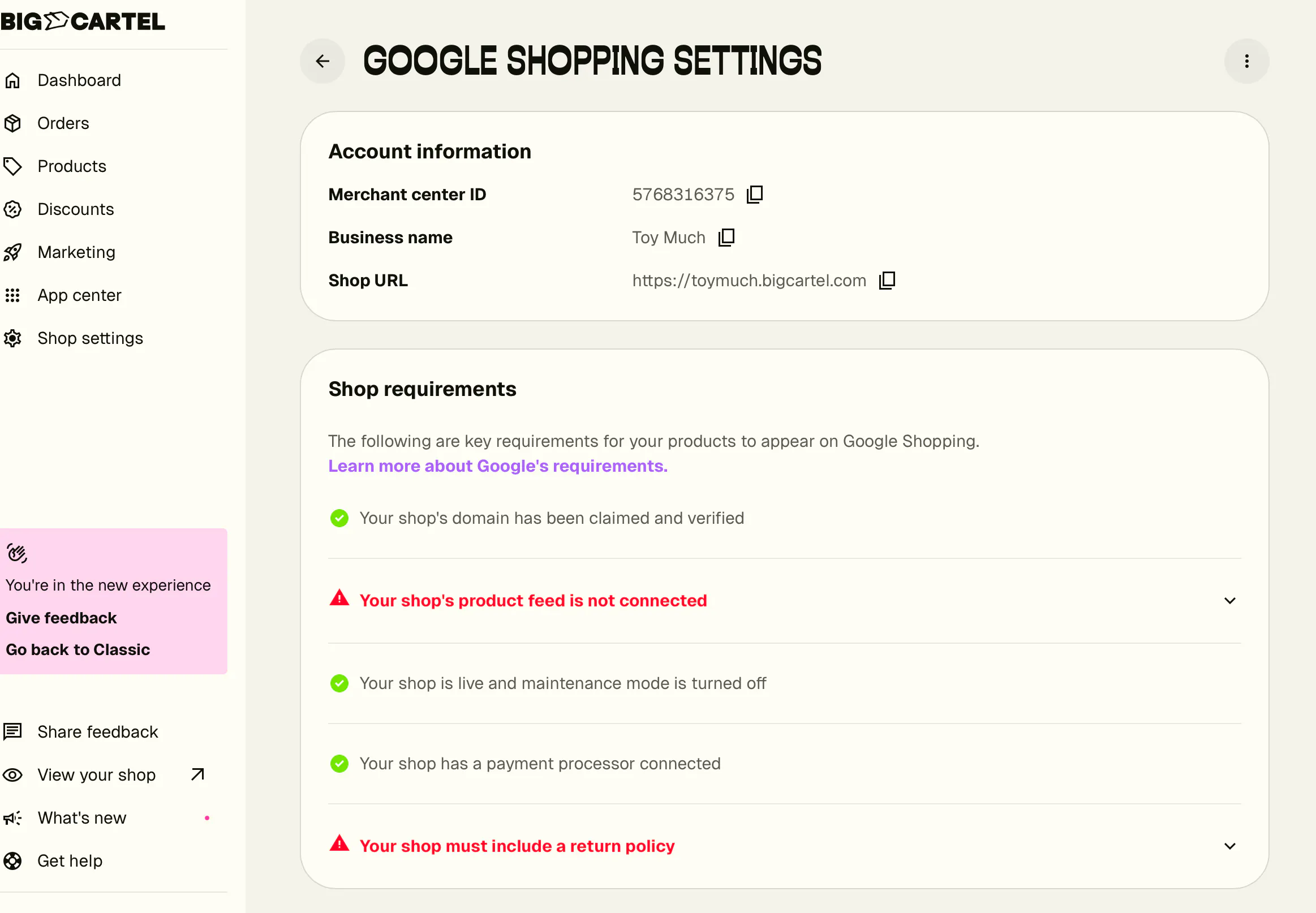
Step 4: Complete requirements
- Review the Shop Requirements section
- These come directly from Google
- Complete everything listed to fully activate your account
Set up requirements
You MUST add:
- Return policy (must match your Big Cartel site exactly)
- Shipping settings
- Business information
To add return policy: Click Add refund policy in your Big Cartel settings you’ll be redirected to Google Merchant Center and paste your policy URL.
- Make sure it matches your store exactly or approval will fail
How to use
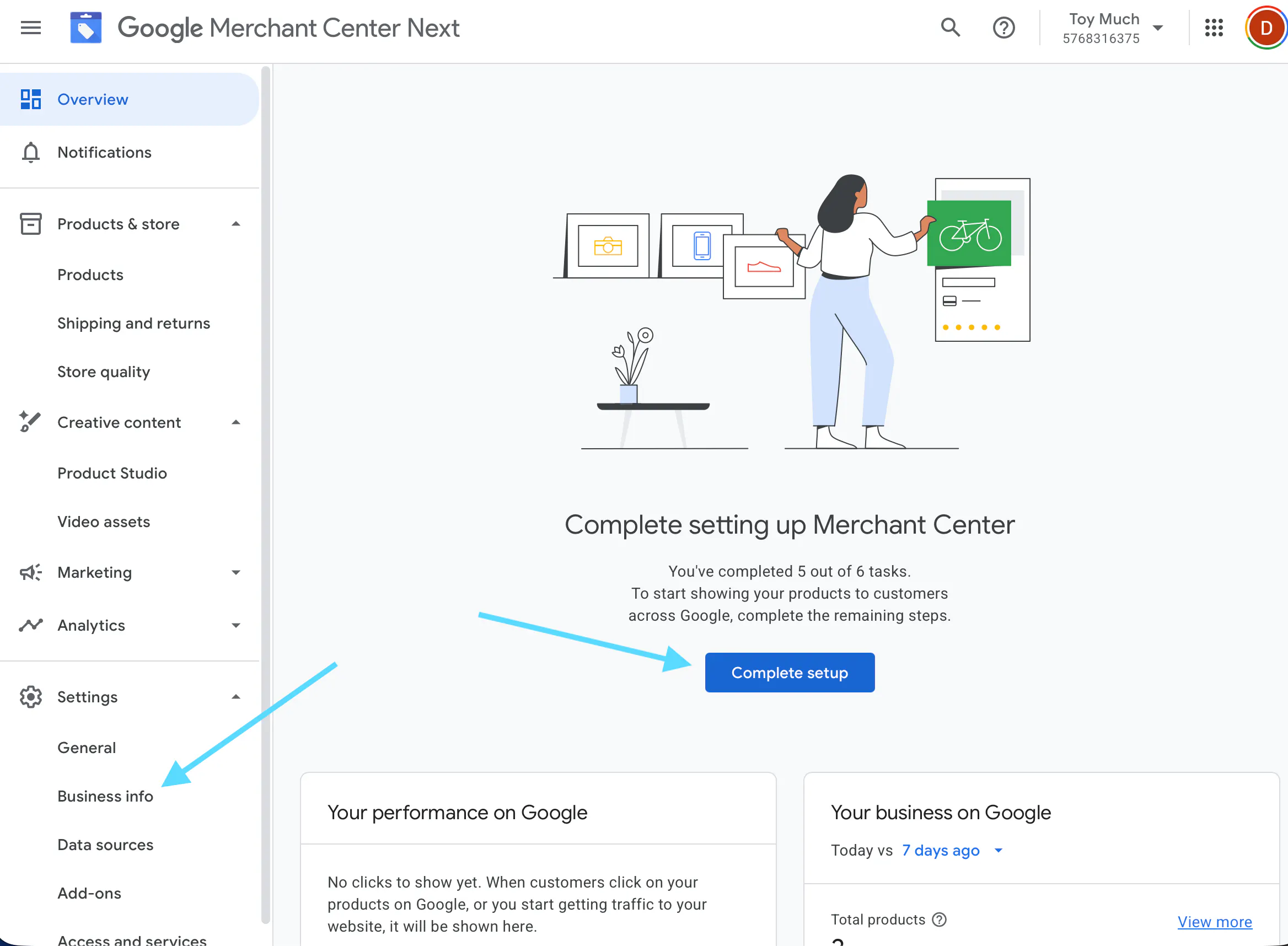
If you’ve create a new Google Merchant Center account it’s likely they don’t have all of your business info listed you’ll want to complete this in the Overview section of your GMC account and using the Complete setup button. This is can also be completed in the Settings > Business info tab.
1. Optimize your products for search
Your product feed is the foundation of Google Shopping:
<https://yourshopname.bigcartel.com/google.xml>
Important:
- Not all required fields are included automatically
- Some product attributes must be added manually in Google Merchant Center
Use the feed editor in Merchant Center to:
- Add missing attributes
- Fix product errors in the Product section using the pencil tool under Edit.
- Improve keyword relevance, Descriptions, Attributes and more

2. Manage product approvals
Go to:
Merchant Center → Products → Needs attention
- Use the pencil icon to edit individual products
- Fix required fields or policy issues
- Note: You cannot bulk edit products reliably—most updates are per-product

3. Configure countries correctly
Only include countries you actually ship to.
If you include unsupported countries (like South Korea), you may get errors.
Fix unsupported country errors (South Korea example)
If you see:
- Unsupported currency
- South Korea errors
Fix it by going to:
Merchant Center → Settings → Data sources
- Click the 3-dot menu
- Edit countries
- Remove South Korea and any other countries you don’t ship to.
- Save changes
If you have multiple feeds:
- Update all feeds OR delete unused ones

If you have multiple feeds:
- Update all feeds OR delete unused ones
4. Monitor account health
Use:
- Overview tab → ensure setup is complete
- Diagnostics tab → view errors and warnings
Common mistakes
- Not matching return policy between Google and your site
- Not checking Diagnostics / Needs attention
- Expecting automatic approval
- Not completing all Merchant Center requirements
- Missing product attributes
Troubleshooting
Your products are active, but they don’t appear in Google Shopping results.
How to fix it
- Go to Google Merchant Center → Products → Diagnostics
- Check for: Disapproved items Pending items Missing product data
- Fix any listed issues
- Wait up to 24–72 hours for updates to appear
Why this happens
Products won’t show if they’re disapproved, incomplete, or still processing.
Products are disapproved
Google has rejected some or all of your products.
How to fix it
- Go to Merchant Center → Products → Diagnostics
- Click on a disapproved item to see the reason
- Update your product or website (common fixes): Match pricing and availability exactly Add clear shipping and return policies Remove restricted items
- Request a review after making changes
Why this happens
Google requires accurate product data and clear store policies to approve listings.
Missing or incorrect product details
Your products have errors like missing information
How to fix it
- Update your product in Google Merchant Center Go to Merchant Center → Products → Use pencil icon on products to make neccessay updates Save changes
Why this happens
Google needs complete and properly formatted product data to list items correctly.
Shipping or tax settings are incorrect
Google shows errors about missing or mismatched shipping or tax.
How to fix it
- In Merchant Center → Shipping and returns: Add correct shipping rates for your target country
- Make sure: Shipping costs match your website Tax settings are configured (or use automatic settings)
- Save and allow time for updates
Why this happens
Google compares your listing details with your website and flags mismatches.
Product changes aren’t updating on Google
You updated your products, but Google still shows old information.
How to fix it
- Update info in your Big Cartel shop and in Google Merchant Center update data feed by
- Wait up to 24–72 hours for updates to sync
- Trigger a manual re-sync (if available)
Why this happens
Product data syncs aren’t instant and can fail if the connection is interrupted.
Website isn’t verified or claimed
Google can’t confirm that you own your store.
How to fix it
Go to Merchant Center → Business information
- Verify your website using one of these methods: HTML tag Google Search Console
- Make sure your domain matches exactly (including “www”)
- Click Claim website
Why this happens
Google requires proof that you own the website before showing your products.
GTIN or product identifier errors
Google is asking for a GTIN, MPN, or brand.
How to fix it
- For branded products: Add GTIN, brand, and MPN if available and if not leave blank
- For handmade or custom products: Mark “identifier exists = no”
- Save and re-sync
Why this happens
Google uses product identifiers to match listings across sellers and improve accuracy.
Products not showing in South Korea
Your products don’t appear for customers in South Korea, even though everything looks correct.
How to fix it
- Check your target country in Merchant Center
- Switch to a supported country (like the US, Canada, or EU)
- Use alternative channels for Korea if needed
If you’re seeing “unsupported currency” errors:
- Go to Merchant Center → Settings → Data sources
- Use the 3-dot menu → Edit countries
- Remove South Korea
- Save changes
If you have multiple feeds:
- Update all feeds or remove unused ones
Why this happens
Google Shopping isn’t fully supported in all countries, including South Korea.
More Google Shopping Tips
In order for your products to be shown on Google Shopping, a few requirements must be met. If your products aren’t showing up, make sure that the following
- Site Status: Make sure your site is live and not in maintenance mode.
- Payment Method: You must have a payment method (Stripe or PayPal) connected and active. Check to make sure your payment account is in good standing if you are seeing any issues related to checkout.
- Refund Policy: Ensure your refund policy is visible on your site and matches the one in on your Google Merchant account.
- Product Feed: If your product feed has been removed from your Google Merchant account somehow, a link to reconnect will be available on your Google Shopping management page. Just click it once to reconnect.
- Active and In Stock Products: Your products must be in stock and have an active status to appear on Google Shopping.
Still need help?
If your issue isn’t listed here:
- Go to Merchant Center → Diagnostics for specific errors
- Look for warnings or account-level issues
- Contact Google support with screenshots of what you’re seeing