Premium Feature | Available to Platinum & Diamond Plan Sellers
Before you start
Before connecting Common Ninja to your shop, make sure:
- Your Big Cartel shop is active
- You're ready to create or connect a Common Ninja account
A paid Big Cartel plan is required to connect and use the Common Ninja integration.
How to connect Common Ninja to Big Cartel
No coding or complex setup is required to get started.
Step 1: Start the integration
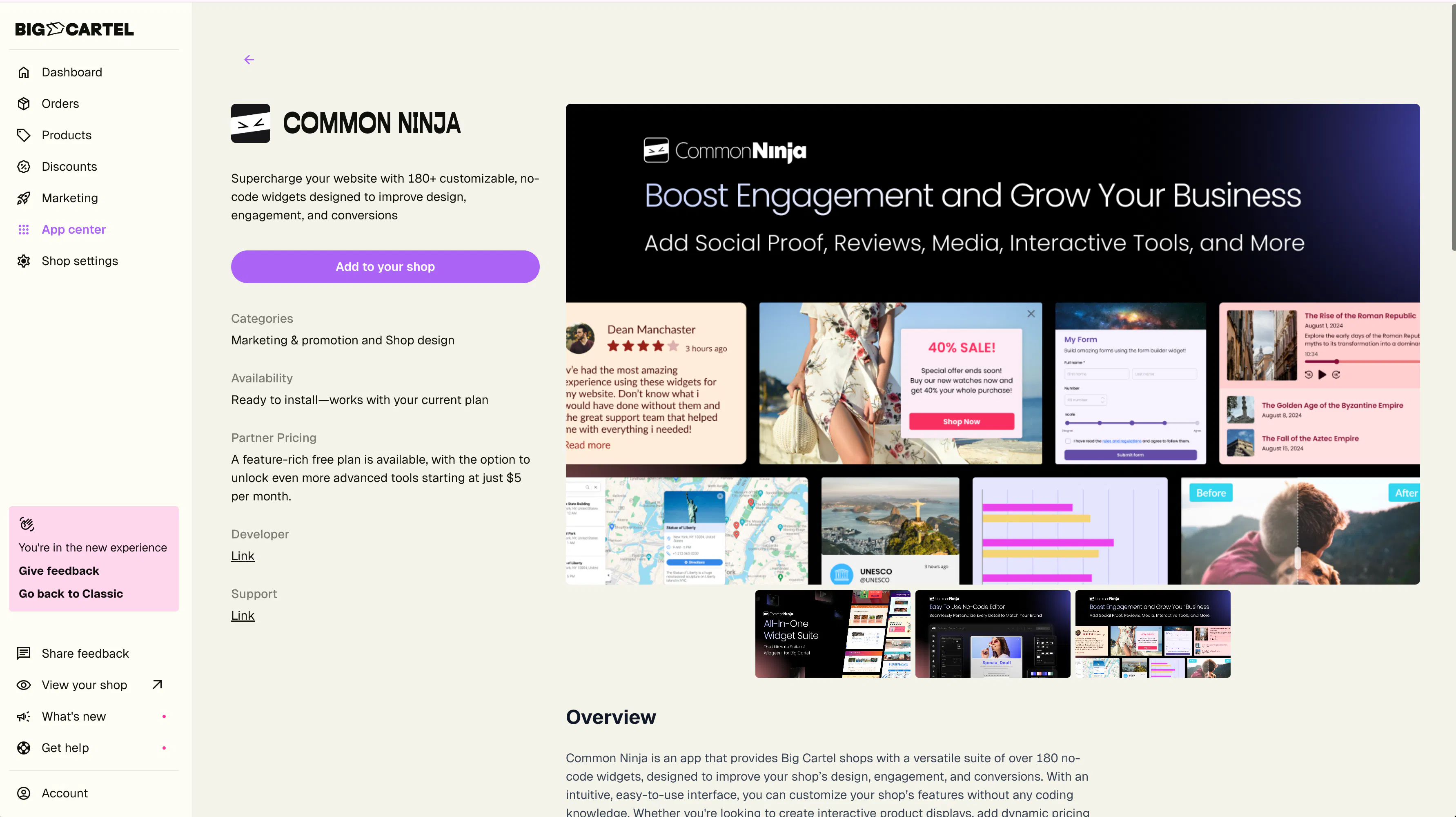
Tap Add to your shop on the Common Ninja integration page.
Step 2: Connect your shop
Tap Connect when prompted to grant Common Ninja access to your Big Cartel shop.
Step 3: Complete account setup
You'll be redirected back to Common Ninja to finish creating your account.
Step 4: Access your widgets
Go to the My Widgets section where you can:
- Create new widgets
- Edit existing widgets
- Manage installed widgets
Step 5: Embed a widget
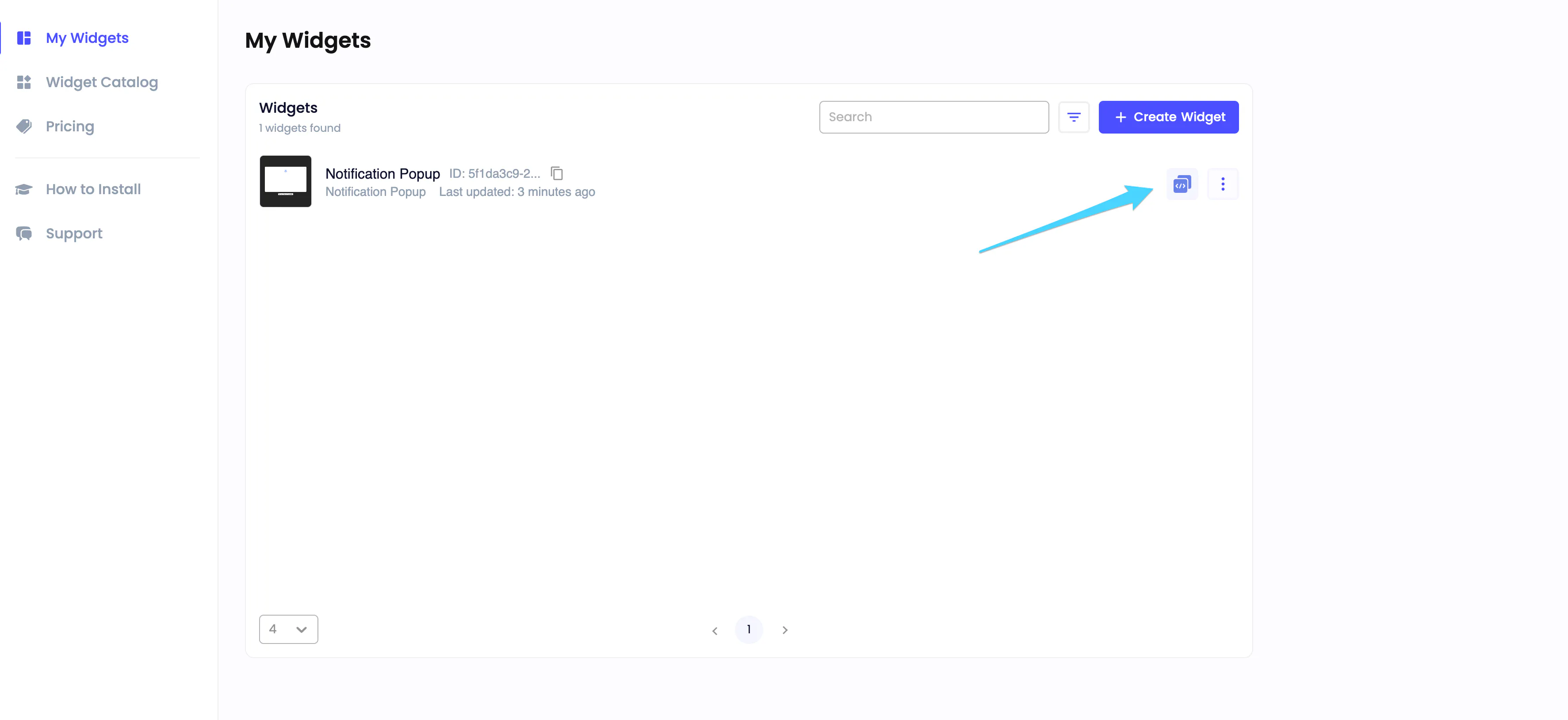
Click the Embed icon next to the widget you want to install.
Step 6: Choose widget placement
Choose whether the widget should appear:
- Across your entire shop
- On specific pages only
For specific pages, you can also choose where the widget appears on the page.
Step 7: Install the widget
Click Install Widget to complete setup.
Once installed, the widget will automatically appear in your shop.
You can edit or manage widgets anytime through the My Widgets section or the Common Ninja mobile app.
Add popups and announcement bars
Use popups and announcement bars to:
- Promote sales
- Share updates
- Highlight coupon codes
- Collect newsletter signups
You can customize timing, placement, and display behavior directly inside Common Ninja.
Create forms and collect leads
Use Common Ninja forms for:
- Customer inquiries
- Newsletter signups
- Wholesale requests
- Event registrations
- Custom order requests
You can also enable notifications and integrations for form submissions.
Add interactive product and content widgets
Use galleries, sliders, pricing tables, testimonials, and social media feeds to create a more engaging shopping experience.
Manage widgets and placement
Widgets can be installed:
- Globally across your shop
- On specific pages
- In different sections of a page
You can update, move, or remove widgets anytime from your Common Ninja dashboard.
Troubleshooting
Widget isn’t appearing in my shop
Check that:
- The widget was installed successfully
- The correct placement was selected
- Your Big Cartel paid plan is active
Changes aren’t updating
After editing a widget, make sure you save and republish the widget so updates sync to your shop.
Widget doesn’t look correct on mobile
Review the widget’s responsive settings and preview it on multiple screen sizes.
Notifications or integrations aren’t working
Verify that notification settings and integrations are configured correctly inside Common Ninja.
Common mistakes
Forgetting to republish changes
Widget edits won’t appear in your shop until changes are saved and republished.
Installing too many popups or animations
Too many interactive elements can overwhelm visitors and negatively impact the shopping experience.
Choosing the wrong widget placement
Place widgets where customers can naturally engage with them.
Not testing widgets on mobile devices
Always preview widgets on both desktop and mobile devices before publishing.
Expecting Common Ninja to manage products or orders
Common Ninja focuses on widgets, engagement tools, and design enhancements — not inventory management, order management, or fulfillment.
Need help?
If you run into issues with setup, widget placement, forms, or integrations, reach out through our support center.
For Common Ninja-specific questions about widgets, billing, customization, or integrations, you can also contact Common Ninja Support directly through your Common Ninja account.