Premium Feature | Available to Platinum & Diamond Plan Sellers
Before you start
Before connecting Chatway to your shop, make sure:
- Your Big Cartel shop is active
- You have or are ready to create a Chatway account
- You’re ready to customize your live chat widget and customer messaging settings
- A paid Big Cartel plan is required to connect and use the Chatway integration.

Follow these steps to connect Chatway to your shop and get your live chat up and running.
Step 1: Open the App Center in Big Cartel
- Log in to your Big Cartel admin
- Click the Apps tab and search for Chatway
Step 2: Connect Chatway to your shop
- Click into the Chatway app
- Select Allow to grant Chatway access to your store
This step securely connects your shop so Chatway can display the chat widget on your storefront.

Step 3: Create your Chatway account
After clicking Allow, you’ll be redirected to Chatway.
- Enter your name, email, and password
- Accept terms and continue
- Click Get Started
Step 4: Customize your chat widget
Now you’ll design how your chat appears to customers.
- Choose your brand colors
- Select a chat icon
- Add a header message (ex: “Hi, how can we help?”)
- Add a preview message that shows before the chat opens
- Click Next when finished
This widget will appear as a pop-up chat bubble on your storefront.
Step 5: Configure messaging and automation
Decide how you want Chatway to handle incoming messages.
You can:
- Enable AI responses to answer common questions automatically
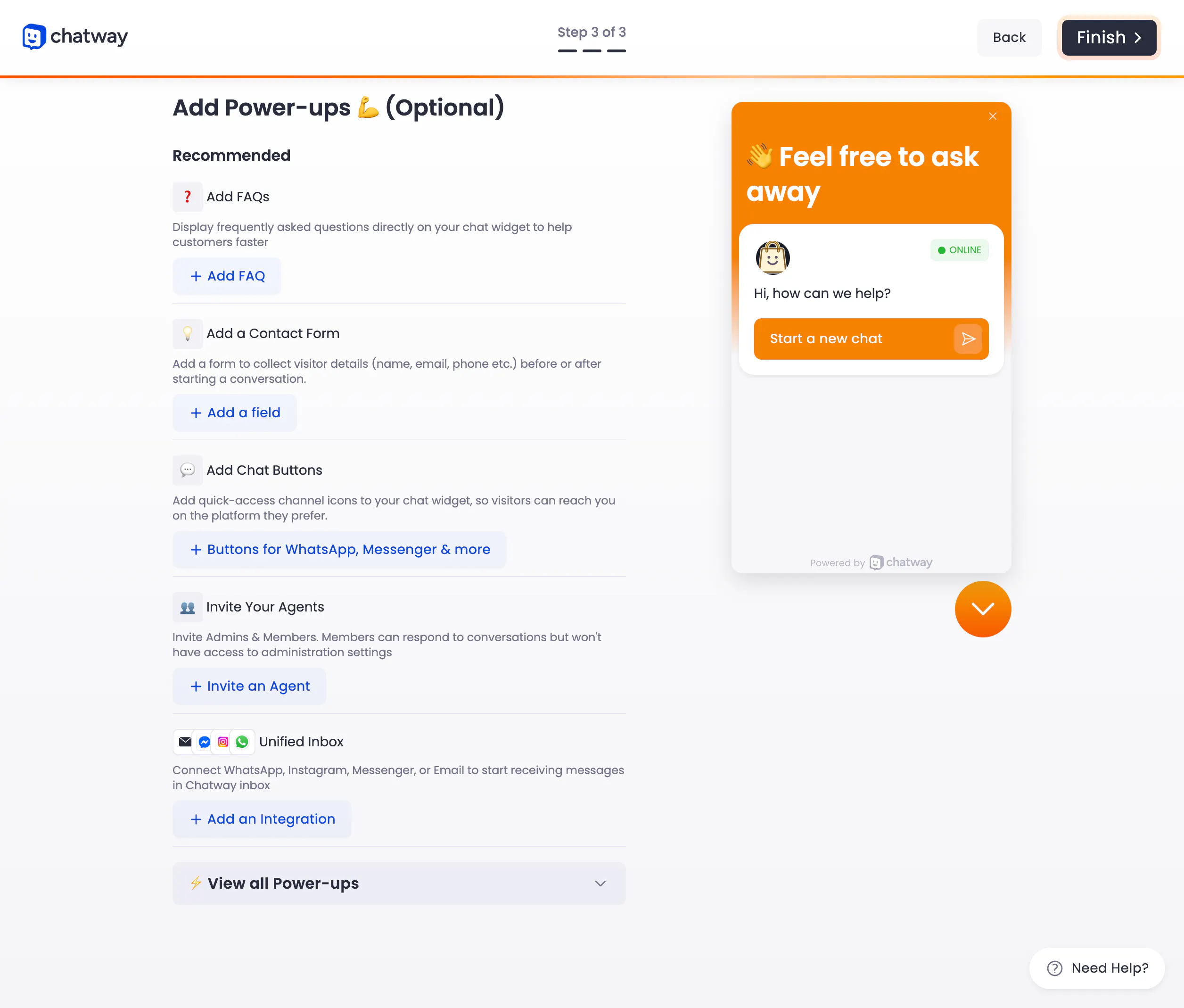
- Add FAQs using “Power Ups” so customers can self-serve
- Set business hours and availability messaging
This helps reduce response time and ensures customers get help even when you're offline.
Step 6: Add contact fields and chat options
Customize what information you collect from customers.
- Add fields like: Name Email
- Choose when these fields appear (before or during chat)
- Add additional messaging or widgets if needed
Screenshot to include:
- Custom fields + Power Ups screen (page 3)
Step 7: Invite team members (optional)
If you have a team:
- Invite agents to help manage conversations
- Assign access to messages
- Use internal notes to collaborate
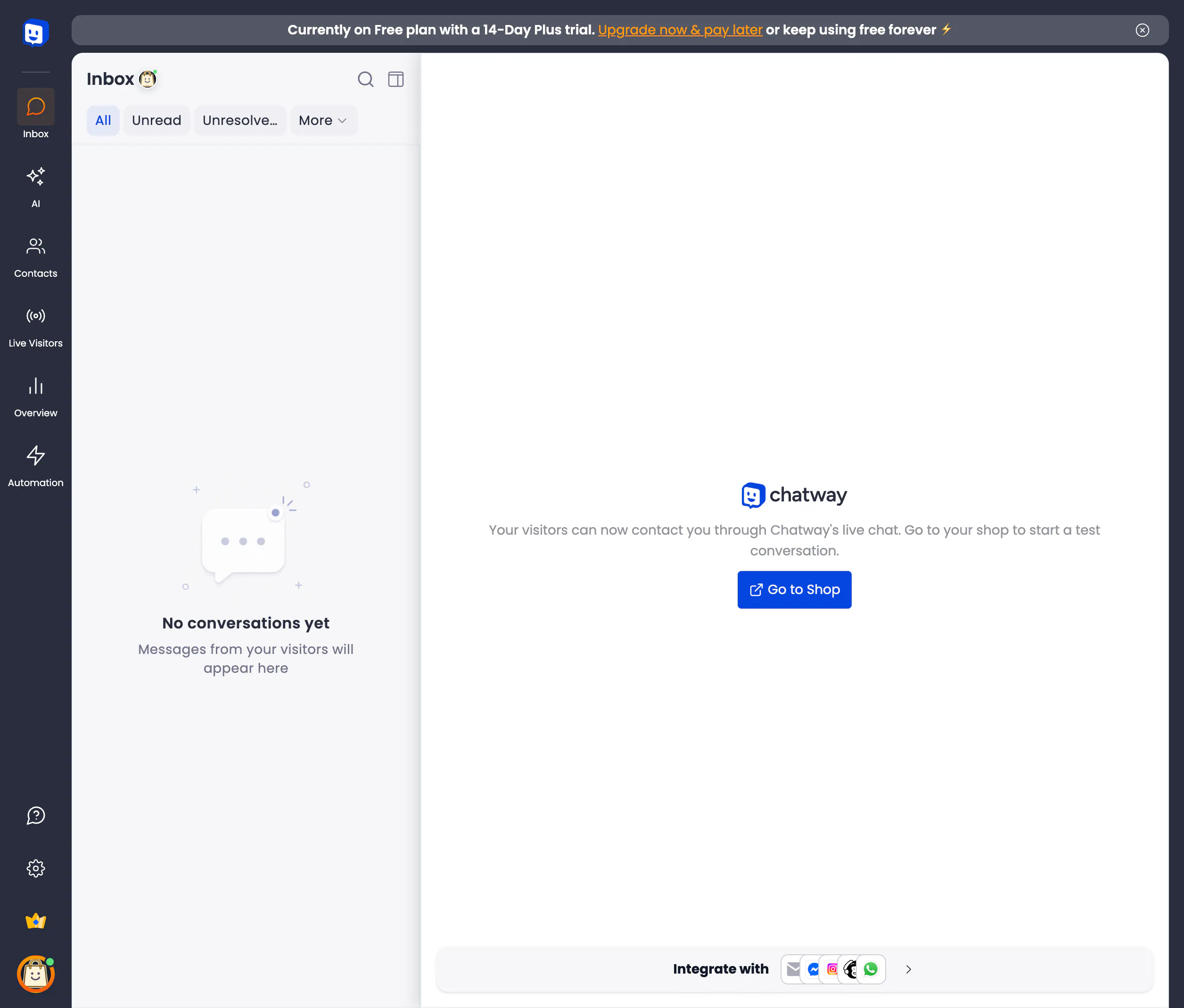
Step 8: Finish setup and choose a plan
- Click Finish
- Select your Chatway plan (Free or Pro)
- Click Go to Shop to return to your storefront
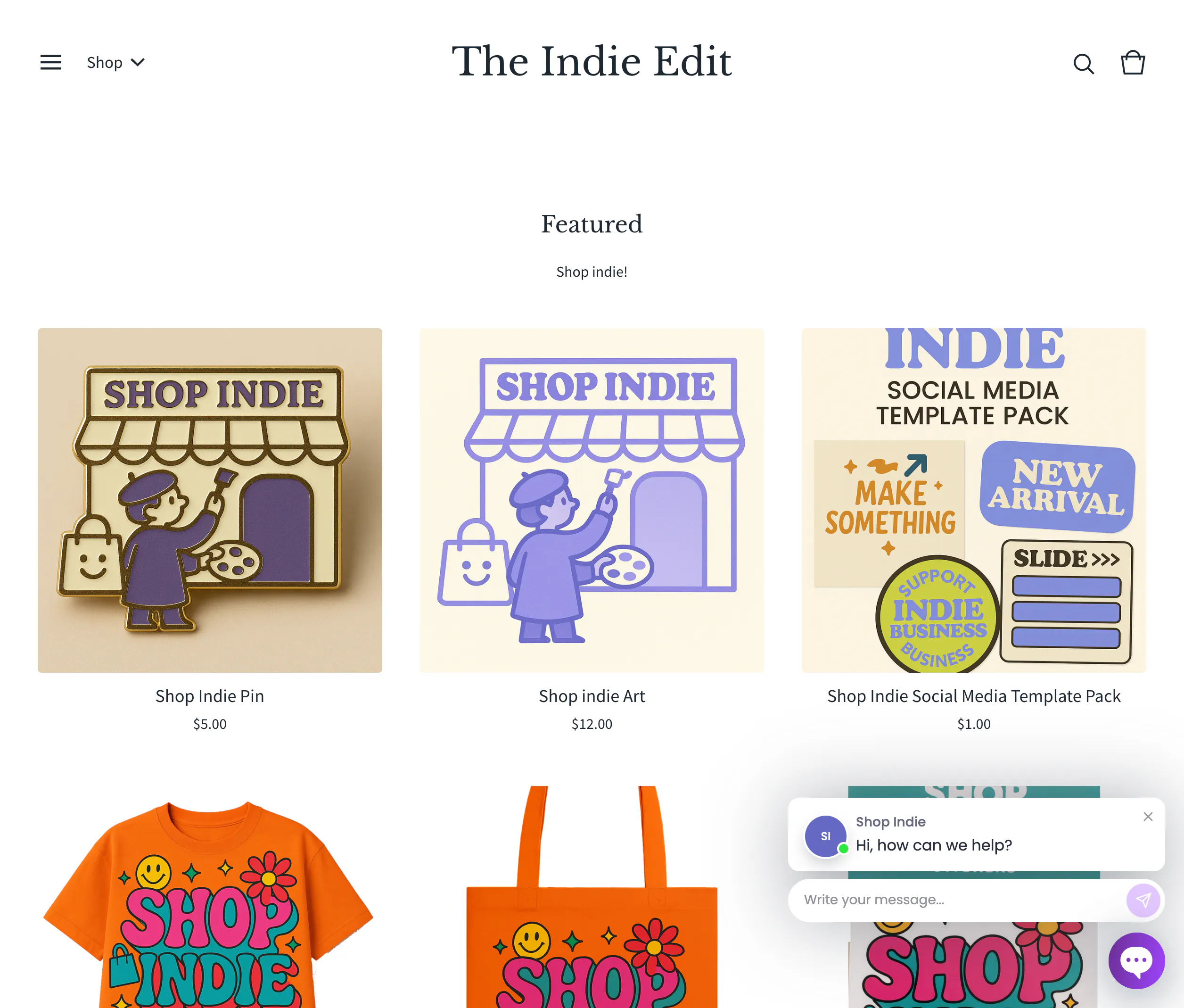
Step 9: Confirm your chat widget is live
- Open your live shop in a browser
- Look for the chat bubble on your storefront
- Send a test message to confirm everything is working
Common ways to use Chatway
Many sellers use Chatway to:
- Answer pre-sale product questions
- Reduce abandoned carts
- Handle customer support faster
- Manage FAQs automatically
- Stay connected while away from their computer
Troubleshooting
I connected Chatway but don’t see it on my storefront
- Confirm setup was fully completed inside Chatway
- Refresh your storefront
- Look for the chat bubble in the corner of the page
Chatway isn’t available on my plan
Chatway requires a paid Big Cartel plan. Upgrade your plan to use integrations.
I can’t find customer messages
Messages are managed inside the Chatway dashboard, not inside your Big Cartel admin.
My widget styling looks wrong
Double-check your widget customization settings inside Chatway and republish changes if needed.
I skipped setup accidentally
You can reopen Chatway at any time to continue setup and customize your widget settings.
Need Help?
Need additional help getting started?
- Visit the Chatway Help Center
- Reach out to Big Cartel support if you need help connecting the integration to your shop