What is Facebook Shopping?
Facebook Shopping (also called Meta Shopping) lets you connect your Big Cartel product catalog to Facebook and Instagram so you can showcase and tag products directly in your social content. Once connected through Meta Commerce Manager, customers can discover your products while browsing social media and head directly to your Big Cartel checkout to complete their purchase.
This integration helps turn your Instagram posts, Facebook posts, reels, and stories into additional ways for customers to shop your products.
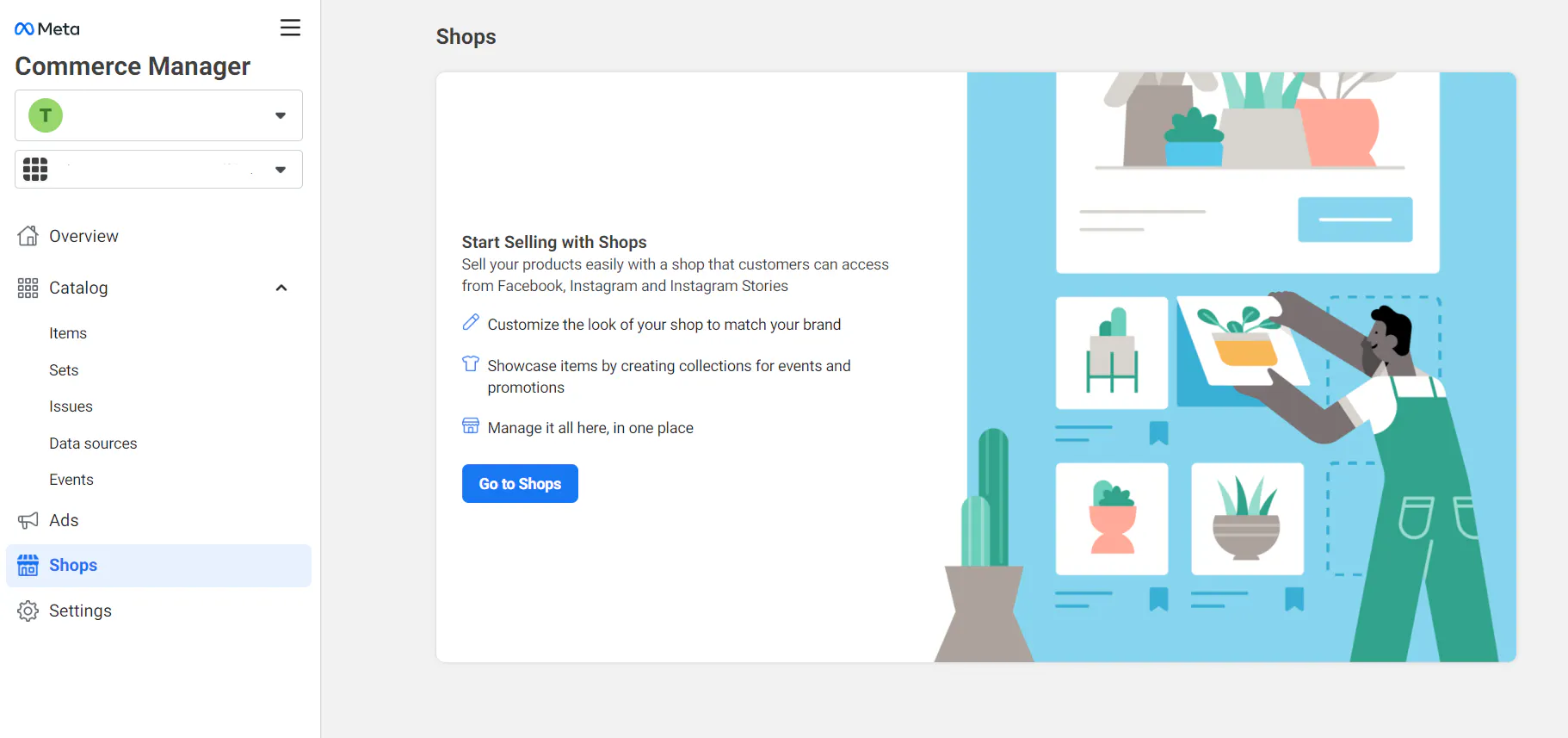
What Facebook Shopping can help you do
Connecting Facebook Shopping to your Big Cartel shop gives you additional ways to promote and sell your products online.
With Facebook Shopping, you can:
- Display your products across Facebook and Instagram
- Tag products directly in posts and stories
- Send customers directly to your Big Cartel checkout
- Increase product visibility through social discovery
- Use Meta ads with your synced product catalog
- Keep your product catalog updated automatically through your product feed
This is especially useful for sellers who regularly post new products, run product drops, or promote items through social media content.
Facebook Shopping pricing
Big Cartel does not charge an additional fee to use the Facebook Shopping integration beyond your Big Cartel subscription plan.
However, Meta may offer optional paid advertising tools or promotional features through Facebook and Instagram if you choose to run ads.
You can review Meta’s current pricing and advertising options directly through Meta Commerce Manager.
Big Cartel plan requirements
A paid Big Cartel plan is required to connect and use the Facebook Shopping integration.
Facebook Shopping is not available on Gold plans.
Before getting started, you’ll also need:
- A Facebook account and Facebook Business Page
- An Instagram Business account
- A Meta Business or Commerce account
Heads up: Even if you only plan to use Instagram Shopping, Meta still requires a connected Facebook Page.
What syncs between Big Cartel and Facebook Shopping
When connected, Big Cartel automatically sends product data to Meta using your product feed.
The following information syncs:
- Product titles
- Product prices
- Product images
- Product URLs through your Facebook product feed
Your catalog updates automatically as products are added or updated in Big Cartel.
What doesn’t sync
Some parts of your shop are still managed directly through Big Cartel and won’t sync back from Meta.
The following do not sync:
- Orders (customers still check out through Big Cartel)
- Inventory changes made directly inside Meta
- Product edits made inside Meta Commerce Manager
If you need to update products, pricing, or inventory, those changes should always be made in your Big Cartel admin.

Key features
Product tagging
Tag products directly in Instagram and Facebook posts so customers can tap products and shop instantly.
Automatic catalog syncing
Your Big Cartel product catalog updates automatically through your Meta product feed.
Social product discovery
Products can appear across Facebook and Instagram, helping new customers discover your shop organically.
Big Cartel checkout
Customers are directed back to your Big Cartel checkout to complete their purchase.
Optional Meta Pixel tracking
You can optionally connect a Meta Pixel to track traffic, conversions, and ad performance.
Product Datafeed
Facebook Shopping uses a product data feed generated by Big Cartel to sync your products into Meta Commerce Manager.
Your feed URL looks like this:
https://YOURSUBDOMAIN.bigcartel.com/facebook.xml
You’ll add this feed inside Meta Commerce Manager when setting up your catalog.
Meta uses this feed to automatically pull in your:
- Product names
- Prices
- Images
- Product links
As long as your products remain active in Big Cartel, your catalog can continue syncing automatically.
Common use cases
Promote new product drops
Post new arrivals or limited releases and tag products so customers can shop immediately from your content.
Turn Instagram content into sales
Tag products in reels, stories, and lifestyle posts to create a more seamless shopping experience.
Run Meta ads with products
Use your synced catalog to create dynamic Facebook and Instagram ads.
Share products without tagging
Even if you don’t want to use product tagging, you can still share your Big Cartel shop link directly in posts and profiles.
FAQs
Do customers check out on Facebook or Instagram?
No. Customers are directed back to your Big Cartel checkout to complete their purchase.
Can I use Facebook Shopping on a Gold plan?
No. A paid Big Cartel plan is required to use the Facebook Shopping integration.
Why aren’t my products appearing yet?
Meta may still be reviewing your catalog or shop. During setup, Meta may also require additional business verification or shipping information before approving your shop.
Can I edit products directly in Meta Commerce Manager?
You can make edits in Meta, but those changes won’t sync back to Big Cartel. Product updates should always be managed in your Big Cartel admin.
Do I need both Facebook and Instagram accounts?
You’ll need a Facebook account and Business Page to use Meta Shopping. Instagram Shopping also requires an Instagram Business account connected to your Meta account.
Still Need Help?
If you still need help:
- Contact Big Cartel Support for questions about your Big Cartel shop, product feed, or integration setup.
- Visit Meta Commerce Manager Help Center for help with Facebook Shop approvals, Meta account setup, or Commerce Manager issues.